Theme Updates
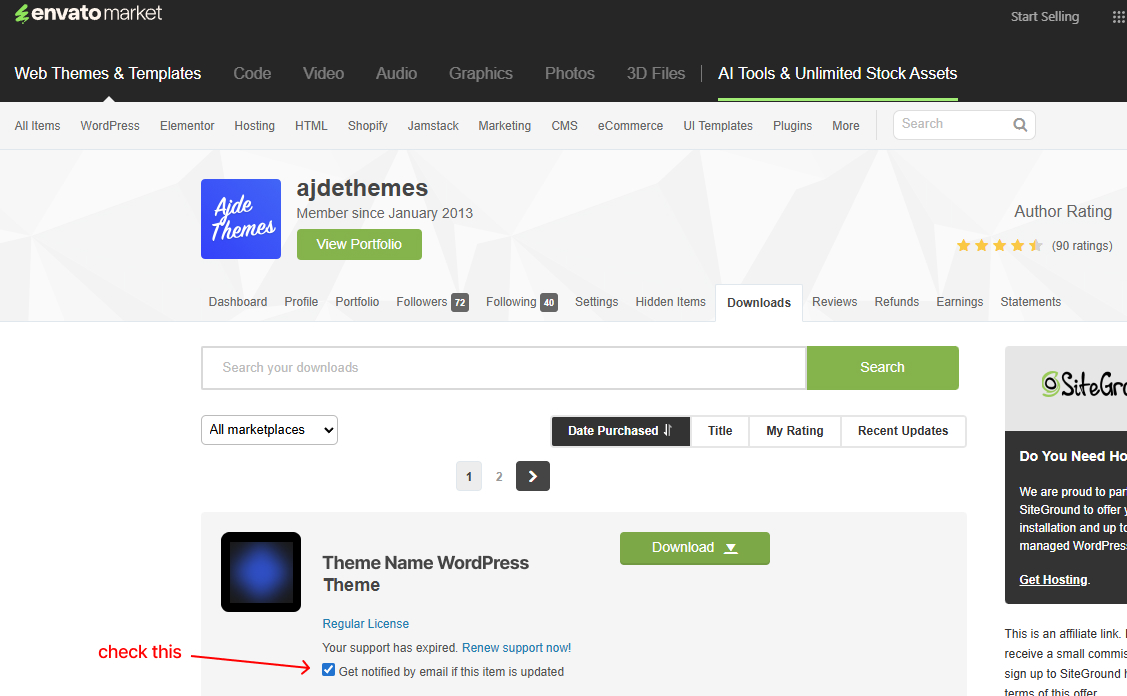
To receive notification when there is a new theme update available, make you check the option "Get notified by email if this item is updated" under the item in downloads tab on ThemeForest.
How to update the theme?
Follow the steps bellow to update the theme:
- 1Head to ThemeForest.net -> Downloads, find the item
and click Download -> Installable WordPress file only. - 2Next from your WordPress site, navigate to Dashboard -> Appearance -> Themes then Add New.
- 3Upload the just downloaded theme-name.zip file and click Replaced uploaded with current one.
- 4Once you update the theme, you will see a notification message to update the theme plugins,
click on it and make sure you update the bundled plugins also.
Did you update the theme plugins, after theme update?
Most functionality is located in the theme plugins not the theme itself so the updates usually address them. You must update the theme's bundled plugins to their latest version.
You can do that from the notification that will show after theme update, or from Dashboard > Kartd > Install Plugins. Eventually the new version of the plugins might be found in the main download folder (download all files) - plugins folder.
To find what was updated, read the changelog.