Shop & WooCommerce
Essential steps to customize the shop, products and all store related settings.
Shop Page Options
To customize the default /shop page for the products, navigate Dashboard > Kartd > Theme Options > Shop.
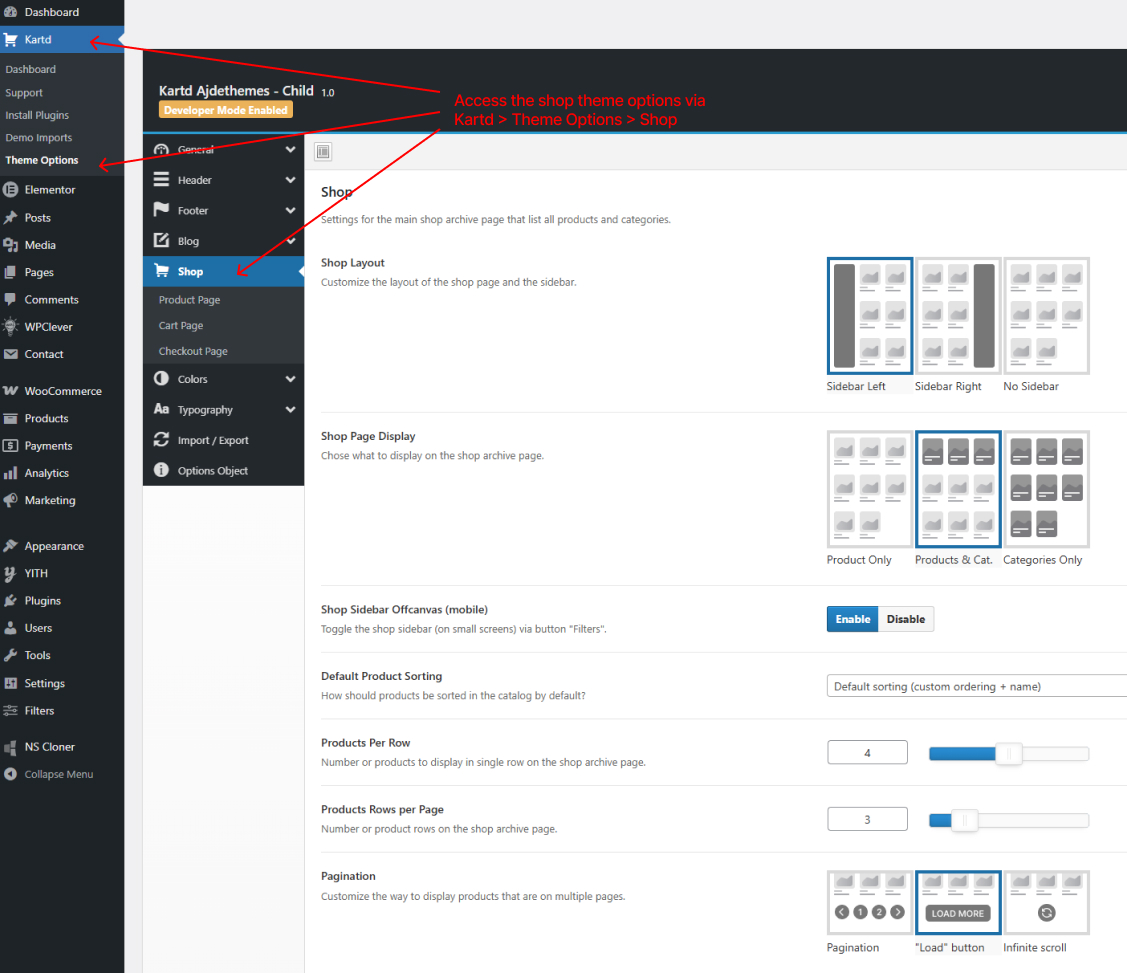
Here you can modify numerous options to customize the shop page to your liking. Most of the options are self explanatory or have detailed description.
Shop Sidebar Offcanvas (mobile) - This hides the widgets sidebar on the shop page under offcanvas menu, that is open and closed via "Filters" button that is shown as you scroll down the page on mobile devices only. When disabled the widgets sidebar would be always visible and appear after the product on mobile devices.
Pagination - on the shop page, that would allow you to chose between: classic numbered pagination, load more (ajax button) or infinite scrolling (ajax - show more products as you scroll down, if there are any).
Add to Cart Button - would affect almost all add to cart product buttons including the products created via Elementor and up-sell/cross-sell.
Product Card Action: Quick View, Wishlist, Compare - show/hide product actions buttons that are shown when you scroll over a product on desktop screens.
Product Page Options
To customize the product page (for a single product), navigate Theme Options > Shop > Product Page
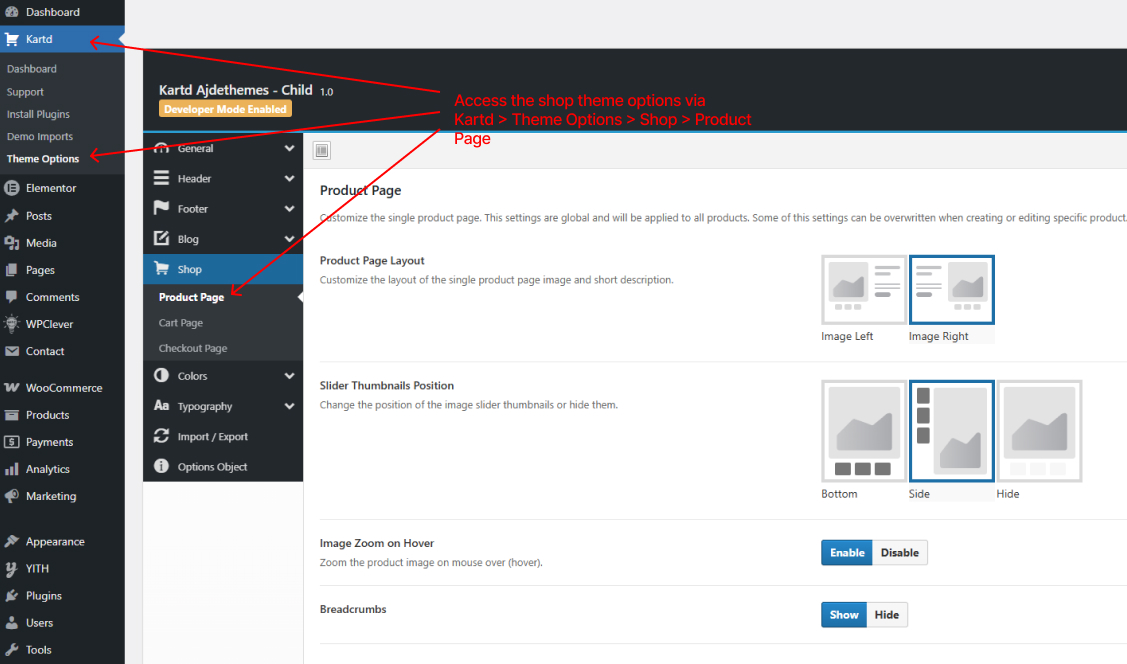
Here you can change the product gallery position to be left/right and also the thumbnail position if the product has multiple images, and a lot more. Keep in mind that this changes affect all products.
Shortcode and Secondary Shortcode options - allows you to output message (content) on all products from there. The shortcode content would be shown before or after the short product description, useful if you want to quickly show some promotion message or update.
Example shortcode that can be used on the product page: [checklist_box]
[checklist_box bg="#f4f4f4" text_color="#222" accent="#006EDB"]
    [checklist_item]Free Delivery on All Orders Over $79.99[/checklist_item]
    [checklist_item]Estimated Delivery Time up to 1 Week[/checklist_item]
    [checklist_item]7 Days Money Back Guarantee[/checklist_item]
    [checklist_item]2 Years Warranty[/checklist_item]
[/checklist_box]
Product Custom Features
There come with custom product features like Highlight Cards, Inside The Box and Product FAQs. This are available when you editing a single product from: Dashboard > WooCommerce > Products.
To show them simply populate the inputs for them with your product info. If you don't want to show them make sure you delete even the empty inputs (that show placeholders) for that specific custom product feature.
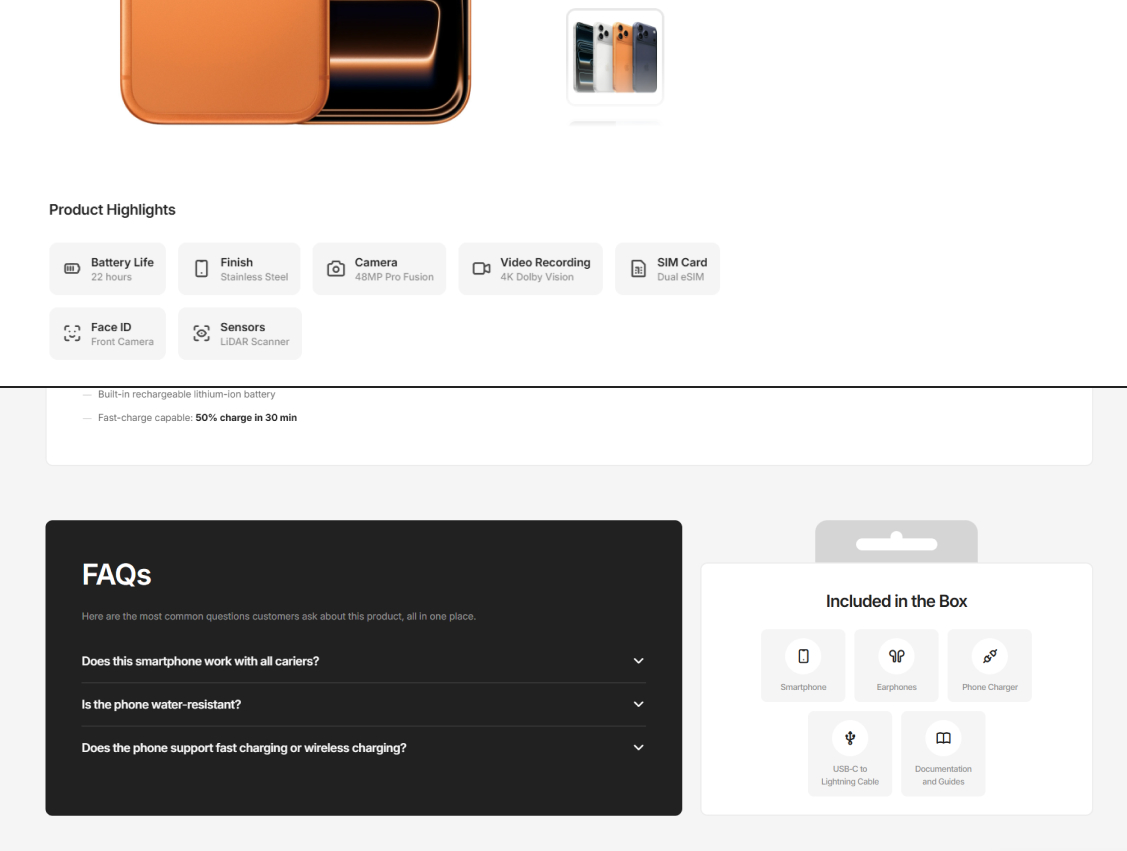
Product Card - Image Gallery
When you add multiple images to the product gallery it auto generates slider that have max of 4 images. The first image is the one set as product image not the first from the product gallery. Slider the browser native and CSS based (very performant) and does not relay on JS for its base functionality.
Adding Color Swatches
Showing color swatches (circles with color) on the product card, is done if you have global color attribute and enabled setting for color swatches from the plugin Filter Everything.
Steps to display color swatches:
- 1Head to Products -> Attributes -> Add attribute. Here make sure you have or create
color attribute with the slug: color. - 2Next, make sure the plugin Filter Everything is active, then head to
Dashboard -> Filters -> Settings -> Experimental -> check "Color swatches for Filters". - 3Step 2 enables you to pick color for the color attributes of the products - created in step 1,
now go back there and click configure terms. Here create colors and pick their color for the swatch. - 4Now when editing a single product, you can create attributes based on a color.
Then go to the tab Variations and click generate variations and populate the inputs. - 5Additional, in Dashboard -> Filters -> Filter Sets you can create filter set with a color filter,
this would allow you to add widgets to the shop sidebar that display color swatches to filter with.
Cart & Checkout Pages
You can customize the cart and checkout pages from Theme Options > Shop > Cart Page/Checkout Page.
Cart Page
You can display shortcodes on the cart page - bellow the cart content and bellow the totals page.
Here are examples of feature cards grid shortcode, than can be displayed bellow the cart content table.
[grid col="3" css_class="mt-spacing-col"]
    [ft_inline_card icon="ti ti-credit-card-pay" title="Secure Payments" text="We accept most payment options, credit cards."]
    [ft_inline_card icon="ti ti-headset" title="Free Support 24/7" text="Call us anytime, with your order issue, we will help."]
    [ft_inline_card icon="ti ti-lock-dollar" title="Easy Returns" text="We offer one week money back on order over $199."]
[/grid]
Examples of payment icons shortcode, that can be shown bellow the totals table.
[payment_icons_list items="apple-pay, amazon-pay, paypal, amex, discover, visa, mastercard" /]
Checkout Page
You can customize the layout of the checkout page to be steps for more guided experience.
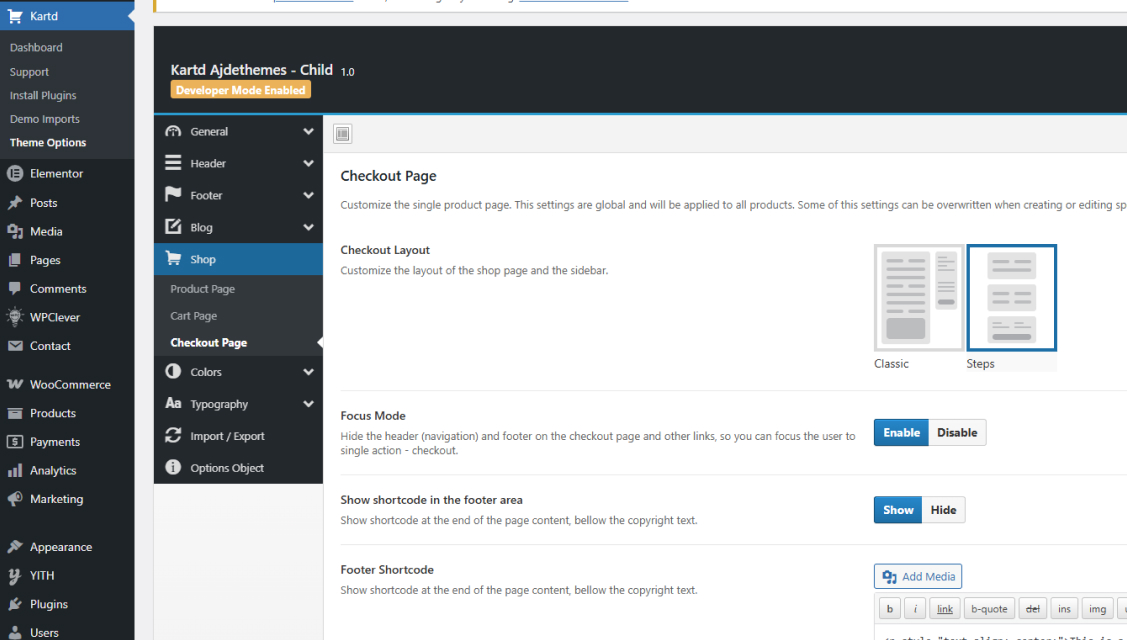
Also, you can enable Focus Mode that hides certain navigation elements so you can focus the user to a single acount - checkout. This pairs well with the steps layout.
WooCommerce Guides
Links to the official WooCommerce guides & documentation.